Sync
Sync keeps your data up to date across all your devices using your own cloud storage. Everything is encrypted on your device before it leaves — only you can decrypt it.
How it works
Glide uses your own cloud storage to store your data. Currently, Google Drive is supported. Before anything is uploaded, it's encrypted on your device using a key that only you have. Your data can only be decrypted by you, on your devices.
Sync runs automatically in the background. You can also trigger it manually from the Sync screen.
Setting up sync
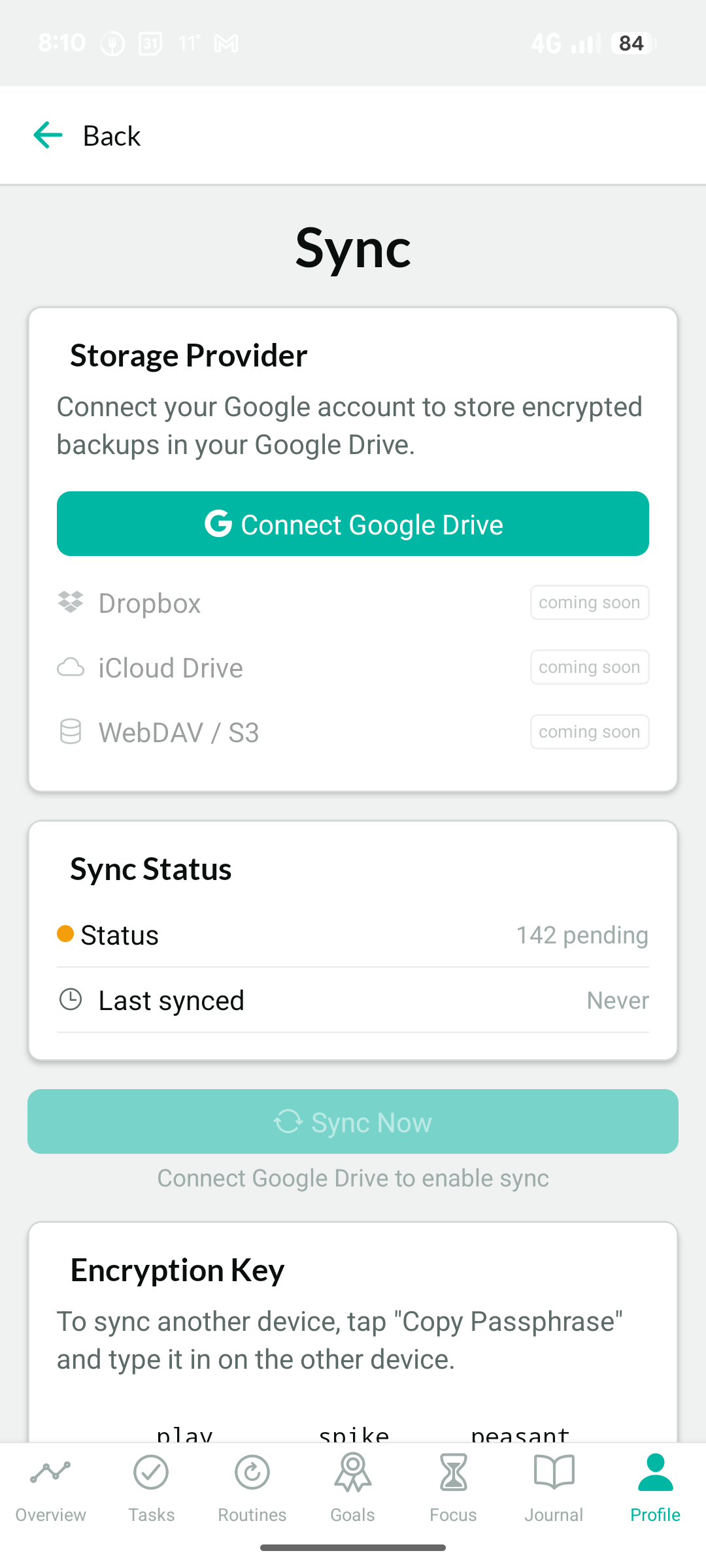
Go to Profile → Sync to get started.
- Tap Generate Encryption Key. Glide creates a passphrase and derives your encryption key from it.
- Write down or copy your passphrase. You'll need it to set up sync on any other device.
- Tap Connect Google Drive and sign in. (Google Drive is the currently supported provider.)
- Sync runs automatically once both are set up. Tap Sync Now to trigger it manually.
Your passphrase is the only way to access your encrypted data on a new device. Store it somewhere safe — a password manager works well. If you lose it, your synced data can't be recovered.
Adding a second device
On the new device, go to Profile → Sync and tap Import by Passphrase. Enter the passphrase from your first device. Glide derives the same encryption key and connects to your existing data in cloud storage.
You don't need to set up a new key — the same passphrase works on every device.
Your passphrase
Your passphrase is shown on the Sync screen under Encryption Key. Tap Copy Passphrase to copy it to your clipboard.
The passphrase is generated once when you set up sync. It doesn't change unless you disconnect and start over.
Disconnecting sync
Tap Disconnect Sync at the bottom of the Sync screen. This removes the encryption key from the current device. Your data in cloud storage is not deleted — you can reconnect on this or any other device using the passphrase.